

A $35 Raspberry Pi sitting next to your router right now can filter every domain request from every device in your house. Every phone, every tablet, every smart TV, every laptop. It doesn't care which browser your kid uses. It doesn't care if they've discovered private mode. It doesn't care if they borrowed a friend's device and connected to your WiFi. If the domain doesn't resolve, the content doesn't load. That's the whole system.
This guide walks through the complete setup: hardware selection, OS installation, AdGuard Home configuration, and the router-level changes that actually make it work. No cloud subscriptions. No per-device agents. No app that gets uninstalled on a Tuesday afternoon while you're at work. Just a small Linux box running a DNS server that your whole network trusts, filtering at the layer nothing bypasses.
The setup takes about two hours the first time. After that, it runs unattended. You'll check the dashboard occasionally, tweak a blocklist, maybe whitelist a domain your kid needs for school. That's the maintenance burden. Two hours once, five minutes occasionally.
If you've never run a Raspberry Pi before, this guide assumes nothing. If you have, you can skim the basics and focus on the AdGuard-specific configuration. Either way, by the end of this, you'll have a DNS filtering setup that outperforms anything you'd pay $20 a month for.
Why DNS-Level Filtering Beats Every Other Parental Control
The Problem With App-Based Controls
Most parents start with the obvious tools. A browser extension here, a parental control app there, maybe Screen Time on the iPhone. These feel like solutions. They are not solutions. They are inconveniences, and a motivated twelve-year-old treats inconveniences as puzzles.
Browser extensions live inside a single browser. Switching browsers takes thirty seconds. Private mode is built into every browser on the market. Uninstalling an app on an iPhone takes two taps. On Android, it's three. These controls assume the device is the perimeter. The device is not the perimeter. The device is in the hands of the person you're trying to filter.
App-based controls also require maintenance per device. Every new phone, every OS update, every app reinstall is another thing to reconfigure. That's not a system. That's a chore that falls apart the moment you stop paying attention.
The Problem With Router Filtering
Router-level parental controls sound better in theory. One setting, whole network, done. In practice, most consumer routers offer a short list of content categories, no per-device granularity, no query logging, and no way to know whether the filtering is actually doing anything.
You can't see what your kid's phone resolved at 11pm last night. You can't allow YouTube on the family laptop while blocking it on the bedroom tablet. You can't whitelist a specific educational domain while keeping the rest of a category blocked. The controls exist, but they're blunt instruments running on firmware that hasn't been updated since the router shipped.
Paid services like OpenDNS Family Shield close some of these gaps, but you're paying monthly for infrastructure you could own outright. The feature parity isn't even close once AdGuard Home is configured properly.
Why AdGuard Home Wins
AdGuard Home is open source, self-hosted, and free. It runs as a DNS server on your Pi, handles DNS-over-HTTPS and DNS-over-TLS for upstream queries, maintains built-in filter lists you can extend, and logs every single query that passes through it. Per-device rules. Per-device schedules. Full query history.
DNS filtering happens before any app, browser, or OS gets involved. There is no app to uninstall. There is no private mode that helps. There is no workaround that doesn't require physical access to your router.

One gap worth naming: mobile data. A phone on LTE bypasses your home WiFi entirely, which means it bypasses your DNS server. That gap closes with Tailscale, which lets you route your kid's phone through your Pi's DNS even when they're not home. That's a separate guide, but it's worth knowing the option exists.
The core principle is that simple. DNS resolution is the first step in loading anything on the internet. Control the resolver, and you control the network.
Hardware: What You Actually Need (and What You Don't)
Recommended Hardware List
The Raspberry Pi 4 in the 2GB or 4GB configuration is the right choice for most households. It runs $35 to $55 depending on RAM tier and where you buy it. AdGuard Home barely uses 100MB of RAM under normal load, so the 2GB model is more than sufficient. The 4GB gives you headroom if you later add Tailscale, Pi-hole as a backup, or anything else on the same machine.
The Pi Zero 2 W works at $15 if the budget is tight. It handles DNS traffic for a household without breaking a sweat. The tradeoff is that it has no built-in Ethernet port, which creates a problem you'll read about in the next section.
For storage, use a 32GB A1-rated SD card at minimum.
DNS servers write logs constantly. A cheap card from a discount bin will die in months. A SanDisk Endurance or Samsung Pro Endurance card costs $10 and lasts years. Alternatively, a USB SSD connected to the Pi 4's USB 3.0 port is the most durable option and eliminates SD card wear entirely.
Use the official Raspberry Pi power supply. Underpowered third-party supplies cause random reboots. A DNS server that reboots unexpectedly takes your entire household offline until it comes back up. The official supply is $8 and eliminates that class of problem entirely.
A case is optional. If the Pi lives somewhere it might get bumped, knocked over, or touched by curious hands, get a case. If it's zip-tied to the back of your router shelf, bare board is fine.
You do not need a monitor, keyboard, or mouse. Everything in this guide runs headless over SSH.
Why Ethernet Is Non-Negotiable
WARNING
Do not run your DNS server over WiFi. WiFi dropouts cause DNS failures for every device in the house simultaneously. One Ethernet cable prevents this entirely.
Run a cable from the Pi to your router. If the Pi is physically near the router, this is a non-issue. If it's not, move it. A DNS server that drops off the network for 30 seconds while WiFi reconnects is a DNS server that breaks every device in your house for those 30 seconds. Ethernet is stable, fast, and costs $6 for a cable.
Total cost for a fresh Pi 4 setup runs under $80. If you have an old Pi 3 or Pi 4 gathering dust, you're under $20 for the SD card and power supply.
Installing Raspberry Pi OS Lite (Takes 15 Minutes)
Flashing the SD Card With Raspberry Pi Imager
Download Raspberry Pi Imager from raspberrypi.com. It's free, available for Windows, Mac, and Linux, and it handles everything from image selection to flashing in a single application. No manual image downloads, no separate flashing tool.
Open the imager and select your Pi model. Under operating system, choose Raspberry Pi OS Lite (64-bit). This is the version without a desktop environment. You don't need a GUI. You need a stable, lightweight Linux install with nothing running in the background that you didn't put there.
Before you click Flash, click the gear icon or the "Edit Settings" button. This is the step most guides skip, and skipping it means you're doing extra work after first boot.

In the settings panel, do the following: enable SSH, set the hostname to something memorable like guardian, and set a username and password you'll remember. You can also configure WiFi here as a backup, but the Pi should be on Ethernet. WiFi in the imager settings is a fallback, not a plan.
TIP
Set the Pi's hostname to something memorable like 'guardian' or 'dns-pi'. You'll be typing it into SSH and referencing it in router settings. guardian.local is easier to remember than 192.168.1.50.
Flash the card, insert it into the Pi, connect the Ethernet cable, and plug in the power supply. The Pi boots automatically.
First Boot and SSH Access
Wait about 90 seconds after powering on, then open a terminal on your laptop and run:
Replace user with the username you set in the imager. If the hostname doesn't resolve, try the Pi's IP address directly. You can find it in your router's connected devices list.
Once you're in, run this before doing anything else:
sudo apt update && sudo apt upgrade -yThis takes a few minutes. Let it finish. You want a fully updated base system before adding software on top of it.
Set a strong password for this machine. It controls DNS for your entire household. A weak password on the admin account is the only serious vulnerability in this setup. Treat it accordingly.
Before moving to the next step, go into your router and assign the Pi a static DHCP reservation using its MAC address. The Pi's IP address cannot change. If it does, your DNS configuration breaks for the whole network.
Installing AdGuard Home (One Command, Five Minutes)
The Official Installer
SSH into the Pi and run the official installer:
curl -s -S -L https://raw.githubusercontent.com/AdguardTeam/AdGuardHome/master/scripts/install.sh | sh -s -- -vThat's the complete install. The script downloads the binary, installs it as a systemd service, and configures it to start automatically on every reboot. If the Pi loses power and comes back up, AdGuard Home comes back up with it. You don't have to do anything.
The installer takes about two minutes on a Pi 4. When it finishes, it tells you which port the setup wizard is running on.
If you're already running a container stack on this machine, a Docker installation is an alternative. It adds flexibility and makes version management cleaner. It also adds a layer of complexity that most people setting up a home DNS filter don't need. The native install is simpler and works just as well.
Initial Web Setup
Open any browser on your network and navigate to:
http://guardian.local:3000The setup wizard walks you through four screens. The important ones:
Set DNS to listen on port 53, all interfaces. This is how every device on your network reaches AdGuard Home.
Set your upstream DNS to something that encrypts queries in transit. Cloudflare via DNS-over-TLS works well: tls://1.1.1.1. Quad9 is a solid privacy-focused alternative: tls://dns.quad9.net. Either one means the queries leaving your Pi to the internet are encrypted, even if the queries coming from your devices to the Pi are not.

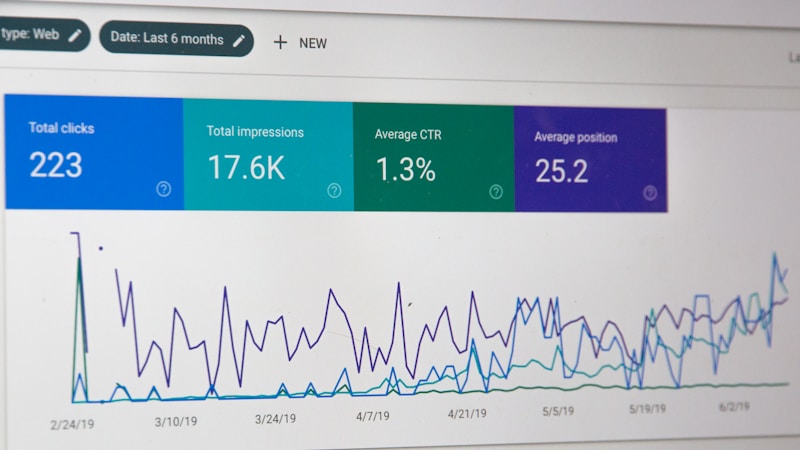
After the wizard completes, the web UI moves from port 3000 to port 80. Bookmark http://guardian.local for future access. The dashboard shows a live graph of DNS queries, a breakdown by client, and your current filtering status. It's genuinely useful, not just decorative.
Making It the Network's DNS: The Step Most Guides Skip
Setting DNS in Your Router
AdGuard Home is installed and running. It's filtering nothing yet, because nothing on your network is sending DNS queries to it. That changes in your router settings.
Log into your router admin panel. The address is typically 192.168.1.1 or 192.168.0.1. Check the label on the router if neither works.
Find the LAN or DHCP settings. You're looking for fields labeled "DNS Server," "Primary DNS," or similar. Every router labels this slightly differently, but the field exists on every router that supports custom DNS.
Set DNS Server 1 to your Pi's IP address. If you followed the DHCP reservation step in the previous section, this is the IP you locked in. Something like 192.168.1.50.
CRITICAL MISTAKE
Setting DNS Server 2 to 1.1.1.1 or 8.8.8.8 defeats the entire setup. When AdGuard is slow or rebooting, devices silently fall back to unfiltered public DNS. Your kid's phone picks this up instantly. Leave Server 2 blank or point it to the router only.
The Fallback DNS Trap
This is the mistake that makes the whole setup feel broken when it isn't. A secondary DNS of 1.1.1.1 looks like a reasonable safety net. It is not a safety net. It's a bypass. Any device that can't reach your Pi for any reason will immediately start resolving domains through Cloudflare's unfiltered public resolver. The filtering is gone and you won't know until you check the query log and notice traffic stopped flowing through AdGuard.
Leave DNS Server 2 blank. If your router requires a second entry, point it to the router's own IP address. That's a worse fallback than public DNS in terms of privacy, but it keeps unfiltered public resolvers out of the picture.
Reserving the Pi's IP Address
If you haven't done this yet, do it now. Go to your router's DHCP reservations or static leases section. Find the Pi by its MAC address and lock it to a specific IP. The Pi's IP address must not change. If it does, every device on the network starts sending DNS queries to an address where nothing is listening.
Save your router settings and reboot the router. Devices pick up the new DNS server on their next DHCP renewal. To test immediately, disconnect and reconnect a device to your WiFi, then open the AdGuard Home dashboard. Navigate to the query log. Open a browser on the reconnected device and load any website. You should see the query appear in the log within seconds. If it does, your network is now running through AdGuard Home. Every device. Every app. Every domain request. Filtered at the layer nothing bypasses.
Filter Lists and Per-Device Rules: Where the Magic Happens
AdGuard Home ships with a handful of default lists covering ads, trackers, and malware. Enable all of them immediately. They're not aggressive enough to break anything important, and they form the foundation everything else builds on.
The Filter Lists Worth Enabling
The defaults are a starting point, not a destination. Add these on top:
OISD Big is the first thing to add after initial setup. It's comprehensive, actively maintained, and covers ad networks and trackers that the default lists miss. It rarely causes false positives. Add it under Filters → DNS Blocklists → Add Blocklist.
AdGuard Mobile Ads Filter specifically targets in-app advertising on phones and tablets. In-app ads are a different beast from browser ads. They use different domains, different delivery mechanisms, and they're often how kids encounter content you'd rather they didn't.
Steven Black's Unified Hosts comes in category-specific variants. The base list is solid. The extended variants add fake news, gambling, and social media domains. You don't have to enable them all network-wide. That's what per-client rules are for.
For adult content, enable AdGuard's built-in Adult Content list and add Hagezi Pro+ on top of it.
For gambling specifically, add Hagezi's Gambling list as a separate entry. Kids find gambling sites through Discord links far more often than through direct searches. The referral chain matters, and a dedicated gambling list catches domains that don't appear on general adult content lists.
Social media lists are optional and depend on your household. Full-time blocking tends to generate more friction than it's worth. A targeted schedule during homework hours accomplishes the same goal with less resistance.
Per-Client Policies: Different Rules for Different Devices
This is where AdGuard Home separates itself from a simple Pi-hole setup.
Navigate to Settings → Client Settings → Add Client. You can identify each device by IP address, MAC address, or DHCP hostname. Assign a name that means something: Sam-iPad, Living-Room-TV, Spouse-MacBook. When you're reading the query log at 11pm and wondering what made 200 requests to an unfamiliar domain, a readable client name is the difference between a quick answer and a 20-minute investigation.
Once clients are named, assign filter profiles per device. Sam's iPad gets the full parental stack: adult content, gambling, mobile ads, the works. Your laptop gets the ad and tracker lists only. The smart TV gets nothing beyond the defaults, because aggressive filtering breaks streaming service lookups in ways that are annoying to debug on a Friday night.
Scheduling: No Internet After 9pm
AdGuard Home 0.107 and later includes per-client scheduling. It's one of the most useful features in the entire application and almost nobody talks about it.
Open the client settings for Sam-iPad and set a schedule that blocks all DNS resolution between 21:00 and 07:00. When the schedule is active, the tablet can't resolve any domain names. It doesn't get a timeout error or a parental control warning page. It just gets nothing. Apps don't load. The browser stalls. The tablet becomes functionally inert at bedtime without any app or hardware intervention required.
For a lighter touch, consider blocking only the social media filter list between 16:00 and 18:00 on school days rather than a full blackout. It keeps the device usable for homework while removing the specific distraction you're targeting.
The Query Log: Your Sunday Morning Superpower
Most people install AdGuard Home, confirm it's blocking ads, and never open the query log again. That's leaving the most useful part of the tool completely untouched.
What the Log Actually Shows You
Every DNS request from every device on your network appears in the log, timestamped, labeled with the client name you assigned, and marked either blocked or allowed. Filter by client name and you get a complete picture of what Sam-iPad was doing at 2am on a Tuesday. Not approximate. Not inferred. Exact domains, exact times.
Domains with repeated block hits tell you something specific: an app is trying to reach an ad network, a data mining service, or a domain on your parental filter lists. Allowed domains you don't recognize are equally worth investigating. They might be telemetry endpoints you'd want to block, or they might be legitimate services for an app you forgot was installed.
The log also catches false positives. If a feature in an app stops working after you added a new filter list, the broken domain shows up in the log as a blocked request. Find it, whitelist it, and move on. Without the log, you're guessing.
Set log retention to 7 or 30 days depending on your storage capacity. SD cards have limited write endurance, so longer retention on a card-based install comes with a tradeoff. A USB SSD changes that calculation significantly.

Using It to Have Better Conversations
The query log isn't a surveillance dashboard. It's a conversation tool.
Showing a kid a specific domain, a specific timestamp, and a specific request count is a fundamentally different conversation than a blanket accusation. It's concrete. It's discussable. It opens a door to talking about what apps do in the background, why data collection is worth understanding, and what the household rules actually exist to protect. That's worth more than any filter list.
Closing the Loopholes: DoH, DoT, and the Bypass Kids Actually Try
You can configure AdGuard Home perfectly and still have it bypassed entirely by a stock browser install. This is the part most parental control guides skip.
Why Encrypted DNS Bypasses Your Setup
Traditional DNS runs over port 53 in plain text. When a device uses your Pi as its DNS server, every query flows through AdGuard and gets filtered. That's the model the entire setup depends on.
DNS-over-HTTPS (DoH) breaks that model. Instead of sending DNS queries over port 53, DoH sends them as encrypted HTTPS traffic to a DoH provider like Cloudflare or Google. From your router's perspective, it looks like regular web traffic. AdGuard never sees the query. Your filter lists never run.
Firefox enables DoH by default. Chrome offers it in settings and enables it automatically when the configured DNS server supports it. iOS has DoH and DoT support built into configuration profiles. A motivated 10-year-old with a search engine can find this in under five minutes.
How to Block It at the Router Level
THE LOOPHOLE MOST PARENTS MISS
If your router allows outbound DNS-over-HTTPS to Cloudflare or Google, your kid's phone can silently bypass AdGuard entirely. Block outbound port 853 (DoT) and known DoH IPs at the firewall to close this. AdGuard Home's own DoH endpoint then becomes the only encrypted DNS option on your network.
At the router or firewall level, block outbound port 53 to any IP address except your Pi. This forces all plain-text DNS through AdGuard. Then block the known DoH endpoints directly: Cloudflare at 1.1.1.1 and 1.0.0.1, Google at 8.8.8.8 and 8.8.4.4, Quad9 at 9.9.9.9, and NextDNS at 45.90.28.0. Also block outbound port 853, which is the standard port for DNS-over-TLS.
Enable DoH and DoT on AdGuard Home itself under Settings → Encryption. This makes your Pi the only available encrypted DNS server on the network. Devices configured to use encrypted DNS will use yours, which means they still get filtered.
Tailscale: Keeping Filtering Active on Cellular
Router-level blocking covers your home network. It does nothing once a phone switches to cellular data.
Install Tailscale on the Pi and configure it as the Tailscale DNS server. Any device with Tailscale installed and connected to your Tailnet routes its DNS through the Pi regardless of what network it's on. Cellular data, a friend's WiFi, a coffee shop hotspot: the filtering follows the device.
Combined with router-level DoH blocking, this covers both scenarios. At home, the router enforces DNS routing. Away from home, Tailscale does. A kid's phone gets filtered DNS everywhere, not just on your WiFi.
Common Mistakes That Break Everything (and How to Avoid Them)
Most AdGuard Home setups that "don't work" have one of the same ten problems. Here they are, in order of how often they appear.
Setting DNS Server 2 to a public resolver. This is the most common mistake. If you set 1.1.1.1 as the secondary DNS on your router, devices will silently fall back to it whenever AdGuard is slow to respond. Your filter lists become optional. Set DNS Server 2 to nothing, or to a second Pi running AdGuard.
Not reserving the Pi's IP in DHCP. Your router assigns IP addresses dynamically by default. When the Pi reboots, it might get a different IP. Every device on your network loses DNS. Reserve the Pi's MAC address to a fixed IP in your router's DHCP settings before anything else.
Forgetting NTP sync on the Pi. Bedtime schedules run on the Pi's system clock. If that clock drifts or is wrong, your 9pm block fires at the wrong time. Confirm NTP is active with timedatectl status and verify the timezone is set correctly.
Filtering on WiFi only. A device plugged into an Ethernet port bypasses your WiFi DHCP assignment and might use a different DNS path depending on router configuration. Confirm your DHCP settings apply to all interfaces, not just the wireless one.
Skipping DNSSEC. Without DNSSEC validation, DNS responses between AdGuard and upstream resolvers can be spoofed. Enable it under Settings → DNS Settings. It adds a small latency overhead that's worth it.
Using your ISP's DNS as upstream. Your ISP logs every query that reaches their resolvers. Even if AdGuard filters the response, the query itself is visible. Use Quad9 or Cloudflare via DoT as your upstream instead.
Setting aggressive filter lists on day one. Add one list at a time. Check the query log after each addition. False positives accumulate fast with aggressive lists, and debugging three lists simultaneously is significantly harder than debugging one.
Ignoring the query log after setup. False positives don't announce themselves. An app just quietly breaks. The query log shows you exactly which blocked domain caused it, but only if you look.
Backup, Recovery, and Long-Term Maintenance
The SD card will die. Not might. Will. Plan for it now and recovery is a 20-minute inconvenience. Don't plan for it and recovery is a 3-hour rebuild from scratch.
Exporting Your Configuration
Navigate to Settings → Backup and Restore → Export. The exported file contains everything: filter lists, client rules, schedules, custom blocklist entries, upstream DNS configuration. Store it in cloud storage, email it to yourself, drop it in a shared folder. The specific location matters less than the fact that you can reach it from a phone when the Pi is dead and you're standing in front of a freshly flashed SD card.
Make this a monthly habit. The config doesn't change dramatically week to week, but a 30-day-old backup is infinitely better than nothing.
When the SD Card Dies
Recovery with a backup in hand: reflash the SD card with Raspberry Pi OS Lite, reinstall AdGuard Home using the one-line install command, restore the config file, point your router back at the Pi. Twenty minutes, start to finish.
Consider switching to a USB SSD for the Pi's boot drive. The write endurance difference between a consumer SD card and even a budget SSD is significant under constant DNS logging load. The hardware cost is under $20 and it changes the failure timeline from years to a decade or more.
Going Further: High Availability and Tailscale
If you want redundancy, run a second Pi with AdGuard Home and use AdGuardHome-Sync to keep both instances in lockstep. Filter lists, client rules, and schedules replicate automatically from the primary to the secondary. Set the secondary as DNS Server 2 in your router. If the primary goes down, DNS keeps working and filtering stays active.
The same Pi can run a reverse proxy like Caddy to serve internal services with friendly .lan domain names, and Tailscale to extend filtered DNS to mobile devices on cellular. The Pi becomes your family's DNS server everywhere, not just at home.
Maintenance rhythm is simple: check the query log on Sunday morning, note any repeated block hits worth investigating, and let AdGuard's automatic list updates handle the rest. The lists update themselves. The schedules run themselves. The work is in the initial setup, not the ongoing operation.
Before You Close This Tab
Your SD card will eventually die. Every one of them does. Export your AdGuard configuration backup today and store it somewhere you can reach it from a phone. Recovery takes 20 minutes with a backup and 3 hours without one.


