

Part 4 walked through how Cloudflare fits into the broader internet infrastructure picture: what it actually is, how its network operates, and why so many developers and site owners reach for it first when performance or security becomes a concern. That foundation matters now, because this part is where theory turns into action.
Moving a domain to Cloudflare DNS is one of those tasks that sounds more complicated than it is. The steps are straightforward. The concepts underneath them are worth understanding. And the payoff, faster DNS resolution, DDoS mitigation, and a centralized control panel for everything you're about to build in this series, arrives almost immediately after the switch is confirmed.
This is the practical core of getting started with Cloudflare. Everything that comes later in this series, Zero Trust access policies, tunnel configuration, firewall rules, depends on your domain being properly connected to Cloudflare's network. Get this right and the rest of the series builds cleanly on top of it.
Why This Migration Matters More Than You Think
There's a distinction that trips up almost everyone who does this for the first time, and it's worth getting clear before touching anything.
What changes when you move to Cloudflare DNS
DNS hosting is the service that answers questions about your domain. When someone types your domain into a browser, their device asks a DNS server: where does this go? Cloudflare becomes the system that answers that question. That's what you're migrating.
Domain registration is something else entirely. It's the record of ownership at the top of the chain, maintained by your registrar (GoDaddy, Namecheap, Google Domains, or whoever you bought the domain from). Moving to Cloudflare DNS does not move your registration. You still own the domain through the same registrar. Nothing about that changes.
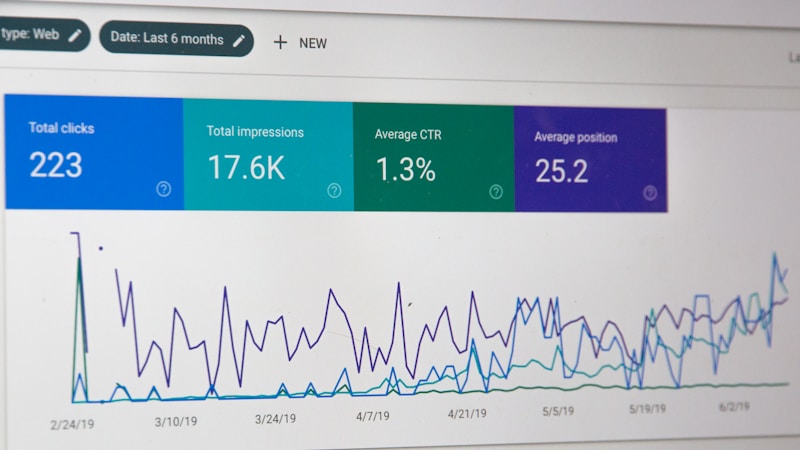
What changes immediately after migration: Cloudflare starts handling all DNS queries for your domain, your traffic routes through Cloudflare's global network, and you gain access to analytics, firewall rules, and performance tools that your old DNS provider almost certainly didn't offer.
The performance gains are real. Cloudflare operates one of the largest anycast networks in existence, with data centers in over 300 cities. DNS queries resolve from the location closest to the user, which cuts lookup latency measurably.
What stays the same at your registrar
Your registrar still holds the registration. Renewal payments still go there. WHOIS ownership records stay there. The nameserver update you're about to make is just a setting inside your registrar's control panel, not a transfer of the domain itself.
The active work here takes under 30 minutes. Add some time for DNS propagation afterward, typically anywhere from a few minutes to a few hours depending on your registrar. This article covers account creation, adding your site, reviewing imported records, understanding the proxy toggle, and updating nameservers. Each step is discrete and reversible if something looks wrong along the way.
Creating Your Cloudflare Account
If you don't have a Cloudflare account yet, this is where the series gets real. Head to dash.cloudflare.com and the signup form is the first thing you'll see.
Signing up and choosing a plan
The form asks for an email address and a password. That's it. No credit card required for the Free plan, and the Free plan is what most people reading this series should start with.
The Free plan includes full DNS management, SSL certificates through Cloudflare's shared certificate infrastructure, basic DDoS mitigation, and access to the analytics dashboard. It handles everything covered in this article and most of what comes later in this series. The Pro plan adds a web application firewall with managed rulesets, image optimization, and priority support, but none of that is necessary to get a domain migrated and working correctly.

Navigating the Cloudflare dashboard for the first time
After signup, the dashboard lands you on the Account Home. The left sidebar is the main navigation. At the top of the sidebar you'll see your account name, and below that are sections for Websites (your zones), Zero Trust, Workers, and account-level settings.
A zone in Cloudflare's terminology is a domain. Every domain you add to Cloudflare gets its own zone, with its own DNS records, firewall settings, SSL configuration, and analytics. One account can hold multiple zones, which makes Cloudflare practical for anyone managing more than one site or client.
Enable Two-Factor Authentication Now
Before adding a domain, go to your profile settings and turn on two-factor authentication. Your Cloudflare account will control DNS for every domain you add. Losing access to it would be a serious problem. Two minutes now prevents a much worse situation later.
The main content area on Account Home shows your zones listed as cards. It'll be empty right now. That changes in the next section.
Adding Your Site to Cloudflare
The button that starts everything is labeled Add a Site and it sits in the upper right of the Account Home, or directly in the empty zones area if this is your first domain.
Entering your domain name
Click it and you'll see a single input field asking for your domain. Enter the root domain here: example.com, not www.example.com and not blog.example.com. Cloudflare manages DNS at the zone level, which means the root domain controls all subdomains beneath it. You don't add subdomains separately at this step.

This trips people up when their site runs on www. The www subdomain is just a DNS record inside the zone. Adding example.com as your zone gives you full control over www.example.com as a record within it.
Selecting the right plan for your needs
After entering the domain, Cloudflare asks you to select a plan. For most beginners and for everything in this series, Free is the right answer. Click it, continue, and Cloudflare immediately starts scanning your domain's existing DNS records.
This automatic import is genuinely useful. It means you're not starting from a blank slate and manually recreating every record from memory. You'll still need to review what it found and fill in anything it missed, but the heavy lifting is done before you've touched a single field. The next section covers exactly how to do that review.
Reviewing and Completing Your Imported DNS Records
The scan result is a table. Every DNS record Cloudflare found in public DNS for your domain appears here, ready for you to confirm, edit, or supplement before the migration goes live.
Understanding what Cloudflare found automatically

The table shows several columns: Type, Name, Content, TTL, and Proxy status. Here's what the common record types mean and why they matter.
A records map a domain name to an IPv4 address. Your root domain and www subdomain almost certainly have A records pointing to your web host's IP address. These are the records that tell the internet where your website lives.
CNAME records map one name to another name. Common uses include pointing www to your root domain, or pointing a subdomain like mail or autodiscover to a third-party service's hostname.
MX records specify which mail servers handle email for your domain. If you're using Google Workspace or Microsoft 365, these records are critical and must be present and accurate before you complete the migration.
TXT records carry text data used for domain verification, SPF email authentication, DKIM signing keys, and DMARC policies. These are invisible to end users but essential for email deliverability.
Cross-reference what Cloudflare found against your current registrar's DNS panel before proceeding. Open both side by side. If a record exists at your registrar but doesn't appear in Cloudflare's import, add it manually now.
Adding missing records for your website
If your A record is missing or shows the wrong IP, click Add record, set the type to A, enter the name (@ for the root domain, www for the www subdomain), paste the IP address from your host, and save. TTL can stay on Auto.
Where to Find Your Host's IP Address
Log into your hosting control panel (cPanel, Plesk, or your host's custom dashboard) and look for a section labeled "DNS Zone," "Account Details," or "Server Information." The IP address listed there is what your A record should point to.
Adding missing records for Google Workspace or Microsoft 365 email
Email records are where migrations go wrong if you're not careful. Get these right before flipping the nameservers.
For Google Workspace, your MX records should look like this:
| Priority | Mail Server |
|---|---|
| 1 | ASPMX.L.GOOGLE.COM |
| 5 | ALT1.ASPMX.L.GOOGLE.COM |
| 5 | ALT2.ASPMX.L.GOOGLE.COM |
| 10 | ALT3.ASPMX.L.GOOGLE.COM |
| 10 | ALT4.ASPMX.L.GOOGLE.COM |
You'll also need a TXT record for SPF: v=spf1 include:_spf.google.com ~all
For Microsoft 365, your primary MX record points to your tenant's mail exchanger, formatted as yourdomain-com.mail.protection.outlook.com with a priority of 0. You'll also need:
- A CNAME record for
autodiscoverpointing toautodiscover.outlook.com - A TXT record for SPF:
v=spf1 include:spf.protection.outlook.com -all
"The most common reason a domain migration breaks email is a missing or misconfigured MX record. Check them twice."
Now, the proxy toggle. Each record has an orange cloud icon or a grey cloud icon next to it.
- Orange cloud (proxied): Traffic routes through Cloudflare's network. Cloudflare acts as an intermediary, which hides your origin IP and enables performance and security features.
- Grey cloud (DNS only): Cloudflare answers DNS queries with the actual destination address, but traffic goes directly to that destination without passing through Cloudflare.
Never Proxy MX Records or Mail-Related TXT Records
MX records and TXT records used for SPF, DKIM, and DMARC must always be set to DNS only. Proxying them doesn't work the way you might expect, and it can silently break email delivery in ways that are annoying to diagnose after the fact. Leave the grey cloud on anything mail-related.
For this initial migration, leave everything as DNS only. Get the migration confirmed and stable first, then go back and enable the proxy on your web-facing A and CNAME records. That order of operations prevents a situation where you're debugging two things at once.
Understanding the Proxy Toggle Before You Flip the Switch
The orange cloud is one of Cloudflare's most powerful features and also the one most likely to cause confusion on a first migration. It deserves its own explanation before you proceed.
Proxied vs DNS only: what the orange cloud actually does
When a record is proxied, Cloudflare's network sits between the visitor and your origin server. The visitor connects to a Cloudflare data center, Cloudflare fetches the content from your server, and returns it to the visitor. Your server's real IP address is never exposed in DNS. This is where DDoS protection, caching, and the web application firewall all operate.
When a record is DNS only, Cloudflare simply answers the DNS query with the real IP address and steps aside. Traffic goes directly from the visitor to your server. No Cloudflare features apply to that traffic.
Which records should never be proxied
Some record types are technically incompatible with proxying, and others break specific services when proxied.
Never proxy:
- MX records (email routing breaks entirely)
- TXT records for SPF, DKIM, or DMARC (these need to resolve as plain text, not through a proxy)
- SRV records (used for services like SIP, XMPP, and some game servers)
- CNAMEs for third-party services like Mailgun, SendGrid, or any service that validates domain ownership via DNS
A concrete example of what breaks: if you proxy an MX record, mail servers trying to deliver email to your domain will connect to Cloudflare's IP instead of your mail host. Cloudflare doesn't accept SMTP traffic on the proxy. The connection fails, the sending server retries, and eventually the email bounces. The error messages are cryptic and the fix isn't obvious if you don't know what you changed.
Leave everything as DNS only for the first migration. Confirm that your site loads, your email works, and nothing is broken. Then enable the proxy on your web A and CNAME records as a deliberate second step.
Updating Your Nameservers at the Registrar
This is the step that actually connects your domain to Cloudflare. Everything before this was preparation. This is the switch.
Finding your assigned Cloudflare nameservers
After reviewing your DNS records and clicking Continue, Cloudflare displays two nameservers assigned specifically to your account. They look something like ada.ns.cloudflare.com and bob.ns.cloudflare.com, though the names vary. Cloudflare assigns these per account, not per domain, so every domain you add to the same account uses the same nameserver pair.

Copy both nameservers exactly as shown. A typo here means the migration never completes, and the error isn't always obvious.
Updating nameservers at common registrars
The process is slightly different at each registrar, but the goal is identical everywhere: remove the old nameservers and add the two Cloudflare ones.
GoDaddy: Log in, go to My Products, find your domain, and click DNS. Scroll to the Nameservers section and click Change. Select "I'll use my own nameservers" and enter both Cloudflare nameservers. Save.
Namecheap: Log in, go to Domain List, click Manage next to your domain. Under the Nameservers dropdown, select "Custom DNS" and enter both nameservers in the fields provided. Save changes with the green checkmark.
Google Domains (now Squarespace Domains): Log in, select your domain, go to DNS, and look for the "Custom name servers" option. Switch from Google's default nameservers to custom, enter both Cloudflare nameservers, and save.
Registrar Terminology Varies
Some registrars label this setting "Custom nameservers," others call it "Use my own nameservers," and a few bury it under "Advanced DNS settings." If you can't find it immediately, search your registrar's help docs for "change nameservers." The option exists at every major registrar.
Saving changes and confir
Waiting for DNS Propagation Without Losing Your Mind
Part 4 walked through adding your domain to Cloudflare and importing your existing DNS records. Now the nameservers are updated at your registrar, and you're staring at a dashboard that says your zone is pending. This is the part where most people start refreshing obsessively and second-guessing everything they just did. Don't. There's a process happening, it takes a predictable amount of time, and you can watch it without panicking.
How Propagation Works and Why It Takes Time
DNS propagation isn't a single switch flipping. It's thousands of resolvers around the world gradually learning that your domain now answers to different nameservers. When you change nameservers at your registrar, that change gets written to the root zone. From there, every recursive resolver on the planet has to expire its cached copy of your old nameserver records and fetch the new ones. The speed of that process depends on the TTL (time to live) that your previous nameserver records carried.
In practice, most registrars set their nameserver TTLs low enough that propagation completes within two hours. The technical maximum is 48 hours, but that's increasingly rare. The first 20 to 30 minutes are usually the slowest. After that, the majority of global resolvers catch up fast.
What Cloudflare Shows You While Waiting
Inside the Cloudflare dashboard, your zone will show a "Pending Nameserver Update" status until Cloudflare's systems confirm that your domain is pointing at the correct nameservers. Cloudflare checks periodically. You don't need to do anything to trigger it. When the check passes, the zone status flips to "Active" and you'll get a confirmation email.
One thing worth understanding: your site doesn't go dark during this window. Cloudflare already imported your DNS records in Part 4. Visitors whose resolvers haven't updated yet are still hitting your old nameservers, which still have valid records pointing to your host. Visitors whose resolvers have updated are hitting Cloudflare's nameservers, which also have valid records. Both paths work.
Tools to Check Propagation Progress
Two free tools make this process visible instead of mysterious. dnschecker.org and whatsmydns.net both let you query your domain's nameserver records from dozens of geographic locations simultaneously. You're looking for Cloudflare's assigned nameservers to start appearing across nodes in North America, Europe, and Asia. When the majority of nodes show the correct nameservers, propagation is essentially complete.

If you prefer the terminal, the dig command gives you a direct query. Run dig NS yourdomain.com and look at the answer section. If you see Cloudflare nameservers in the response, your resolver has updated. You can also specify a particular nameserver to query against: dig NS yourdomain.com @8.8.8.8 queries Google's public resolver directly, which is a useful independent check.
Testing Your DNS After Migration
The dashboard says "Active." That's a good sign, not a final confirmation. Active means Cloudflare sees the correct nameservers. It doesn't automatically mean every record is resolving correctly, your email is routing, and your SSL certificate has issued. Those require separate checks, and they take about ten minutes to run through completely.
Verifying Your Website Is Resolving Correctly
Open a terminal and run dig A yourdomain.com. The answer section should return the IP address you configured in your A record. If you're proxying through Cloudflare, you'll see a Cloudflare IP instead of your origin IP, which is correct behavior. Run the same check for www.yourdomain.com to confirm your CNAME is resolving.
You can also use nslookup if you're on Windows: nslookup yourdomain.com. Either tool works. What you're confirming is that the record you configured in Cloudflare is what the world sees.
Load the site in a browser. Check that it loads over HTTPS without a certificate warning. Check both the root domain and www. If both load cleanly, your web DNS is working.
Verifying Email Is Routing Correctly
Go to MX Toolbox at mxtoolbox.com and run an MX lookup on your domain. You should see your mail provider's MX records listed with the correct priorities. If you're on Google Workspace, you'll see five Google MX records. If you're on Microsoft 365, you'll see Microsoft's records. Anything missing or out of order here will affect mail delivery.
Test Before You Trust
Don't just check the MX lookup. Send an actual test email to and from your domain. Receiving confirms inbound routing. Sending and having it arrive without landing in spam confirms your SPF and DKIM records are intact. Both tests together take two minutes and catch problems that a dashboard check won't show you.
Checking SSL and HTTPS Status
Cloudflare's Universal SSL certificate issues automatically when your zone goes active. In most cases it's ready within 15 minutes. Open the Cloudflare dashboard, navigate to the SSL/TLS tab, and look for a certificate with "Active" status covering your domain and the www subdomain.
If you see a certificate error in the browser immediately after migration, don't assume something is broken permanently. The certificate may still be issuing. Wait 15 minutes and reload. If the error persists past 30 minutes, check that your SSL/TLS mode in Cloudflare is set to Full or Full (Strict) rather than Flexible. Flexible mode can cause redirect loops with hosts that already have their own SSL configured, and it's the most common source of post-migration HTTPS errors.
Avoiding Downtime: Common Mistakes and How to Prevent Them
Most DNS migration failures aren't dramatic. They're quiet. Email stops arriving. The www version of the site returns a 404. A contact form breaks because it depends on a subdomain nobody thought to check. The mistakes that cause these problems are predictable, which means they're preventable.
Missing Records That Cause Outages
The three record types most commonly forgotten during migration are SPF, DKIM, and DMARC. All three are TXT records. All three are invisible to website visitors. And all three matter enormously to mail servers deciding whether to accept or reject your outgoing email.
Email Deliverability Fails Silently
If SPF or DKIM is missing, your outbound emails may still send. They'll just land in spam, or get rejected outright, with no error on your end. You won't know until someone tells you they never received your message. Check these records before you change a single nameserver.
The fix is simple: before you touch anything at your registrar, take a screenshot or export of every DNS record currently configured. Most registrar dashboards have an export option. If yours doesn't, copy the records manually into a text file. That record becomes your reference for verifying that Cloudflare's import captured everything correctly.
Proxying Records That Should Not Be Proxied
Cloudflare's orange cloud proxy is excellent for web traffic. It's actively harmful for email. MX records cannot be proxied. Neither can the TXT records associated with email authentication. If you accidentally enable the proxy on an MX record, inbound email will fail without any error message on the sending side. The sender gets a delivery failure; you get nothing.
"The orange cloud is for HTTP and HTTPS traffic. Everything else should stay grey until you have a specific reason to change it."
Check every mail-related record in your Cloudflare DNS tab. The cloud icon next to each one should be grey, not orange.
Changing Too Many Things at Once
Migrations go wrong when people treat the nameserver change as an opportunity to also restructure their DNS, update their hosting, and change their email provider simultaneously. Pick one thing. Move the nameservers. Confirm everything works. Then make other changes from inside Cloudflare where you have full control and can roll back individual records in seconds.
If something breaks after migration and you can't immediately identify the cause, Cloudflare's DNS Only mode is your fallback. Setting a record to DNS Only removes Cloudflare's proxy from the equation and lets you isolate whether the problem is in the record itself or in the proxy layer.
Real-World Example: A Website on Shared Hosting with Google Workspace Email
Abstract instructions are useful. A concrete example is better. Here's a scenario that covers the majority of small business and personal site setups: a domain registered at Namecheap, a website hosted on Bluehost shared hosting, and email running through Google Workspace.
The Starting Setup
The domain was registered at Namecheap three years ago. The website has been running on Bluehost since day one, pointing to Bluehost's nameservers. Google Workspace was added later, which required adding MX records and a few TXT records at Namecheap's DNS manager. Everything works, but it's all scattered across two control panels with no unified view.

The Exact Records Needed in Cloudflare
After adding the domain to Cloudflare and reviewing the imported records, here's the complete set that needs to be present and correct:
- A record for the root domain pointing to Bluehost's shared hosting IP
- CNAME record for www pointing to the root domain or Bluehost's hostname
- Five MX records for Google Workspace with the correct priorities (1, 5, 5, 10, 10)
- SPF TXT record:
v=spf1 include:_spf.google.com ~all - DKIM TXT record provided by Google Workspace admin console, added as a TXT record on the
google._domainkeysubdomain - DMARC TXT record on
_dmarcsubdomain with your chosen policy - Google site verification TXT record if Google Workspace requires domain ownership confirmation
What to Proxy and What to Leave Alone
The A record for the root domain gets the orange cloud. The www CNAME gets the orange cloud. Every other record stays grey.
The MX records stay grey. The SPF, DKIM, and DMARC TXT records stay grey. The Google site verification TXT record stays grey. None of those should ever be proxied.
At Namecheap, the nameserver update lives under Domain List > Manage > Nameservers. Select "Custom DNS," delete the existing Bluehost nameservers, and enter the two Cloudflare nameservers assigned to your account. Save. Within two hours, the zone goes active in Cloudflare, the site loads over HTTPS with a Cloudflare certificate, and a test email confirms Google Workspace is routing correctly in both directions.
Your Migration Checklist
What Comes Next in the Series
You've done the hard part. The account exists, the records are in Cloudflare, the nameservers are updated, and your zone is active. Your site loads, your email routes, and your SSL certificate is issued. That's a complete, working DNS migration.
Part 6 goes deeper into DNS records themselves. Not just what they are, but how to configure them correctly inside Cloudflare for specific situations: subdomains, redirects, multi-service setups, and record types that most people never touch until something breaks. It's the kind of article that makes the migration you just completed make more sense in hindsight.
Everything that comes after Part 6 builds on what you've done here. The security rules, the caching configuration, the Zero Trust policies, the tunnel setup: all of it assumes you have a working Cloudflare zone with correct DNS records. If your migration isn't complete yet, finish it before moving on. The next parts are significantly more useful when you can test changes against a live domain you actually control.


